
Sarah landed her dream remote marketing role in January, only to lose the offer’s shine during her very first video interview — her webcam froze, her Wi-Fi dropped twice, and she spent more time apologizing than actually talking about her qualifications.
Stories like hers are more common than most new remote workers expect, and they’re almost always preventable with the right gear sitting on your desk before day one.
As remote and hybrid work continue to define how millions of people earn a living in 2026, the difference between thriving from home and constantly troubleshooting technical hiccups comes down to preparation.
You don’t need a Silicon Valley budget to build a productive home office — you need the right essentials, chosen deliberately. This guide breaks down exactly what belongs on your remote work tech checklist, why each item matters, and how to choose wisely without overspending.
Why Your Home Office Tech Setup Actually Matters
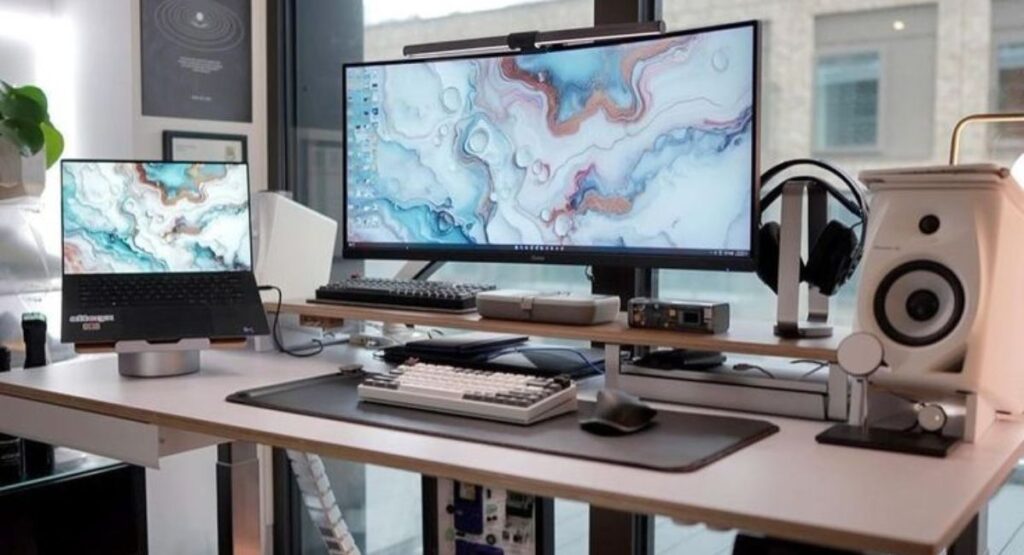
Employers increasingly evaluate remote employees on reliability as much as skill. A dropped call, laggy screen share, or muffled audio can quietly damage your professional reputation, even if the work itself is excellent. Your equipment isn’t just about comfort — it’s part of how you show up, communicate, and get evaluated in a remote-first world.
Below is the core equipment every remote professional should have in place, followed by a deeper look at each item.
| Tech Essential | Primary Purpose | Typical Investment |
| Reliable Internet Connection | Uninterrupted calls, uploads, and cloud access | $40–$100/month |
| Noise-Cancelling Headphones | Clear audio, fewer distractions | $50–$350 |
| Dual-Monitor Setup | Multitasking and productivity | $150–$600 |
| Powerful, Compact Laptop | Core work performance and portability | $700–$2,000 |
| Comfortable Chair and Desk | Posture, focus, and long-term health | $200–$900 |
| Webcam | Professional video presence | $30–$200 |
1. Reliable Internet Connection: The Non-Negotiable Foundation
No remote job checklist is complete without addressing bandwidth first. Everything else on this list — video calls, cloud file syncing, VoIP tools — depends entirely on a stable connection.
What to look for:
- A router that supports Wi-Fi 6 or Wi-Fi 6E for faster speeds and better handling of multiple connected devices
- Minimum download speeds of 25–50 Mbps for video calls; 100+ Mbps if your household shares bandwidth with others
- A mesh Wi-Fi system if your workspace is far from the router or blocked by thick walls
- A mobile hotspot or secondary ISP as backup during outages
Pro tip: Run a speed test during your normal working hours, not just early morning, since neighborhood congestion can slow things down when everyone’s online simultaneously.
How Much Internet Speed Do Remote Workers Actually Need?
For basic email and browsing, 10–25 Mbps is enough. For daily video conferencing, file uploads, and multitasking across apps, aim for at least 50–100 Mbps to avoid lag.
2. Noise-Cancelling Headphones: Protecting Your Focus and Your Calls
Background noise — barking dogs, construction, roommates, kids — is one of the biggest hidden productivity killers in home offices. Noise-cancelling headphones solve two problems at once: they block outside distractions so you can concentrate, and they filter background noise so colleagues and clients hear you clearly.
Key features to prioritize:
- Active noise cancellation (ANC) rather than passive isolation alone
- A built-in or attachable microphone with noise-suppression software
- Wireless connectivity with at least 20+ hours of battery life
- Comfortable, over-ear design for all-day wear
Budget wired options work fine occasionally, but if your role involves back-to-back meetings, investing in a quality wireless ANC headset pays for itself in reduced fatigue and fewer “can you repeat that?” moments.
3. Dual-Monitor Setup: Multiply Your Productivity
Studies on knowledge worker output consistently point to the same conclusion: switching between browser tabs and windows all day slows you down. A second monitor lets you reference documents, spreadsheets, or video calls side-by-side with your main workspace instead of constantly toggling.
Benefits of a dual-monitor setup:
- Faster task-switching between communication tools and actual work
- Easier side-by-side document comparison and editing
- Reduced eye strain when text and windows are properly sized
- More natural video-call etiquette — keep the call on one screen while referencing notes on the other
If desk space or budget is tight, an ultrawide monitor is a solid single-screen alternative that mimics much of the dual-monitor benefit.
Do I Need Two Monitors, or Is One Big Screen Enough?
A single ultrawide monitor (34 inches or larger) offers similar multitasking benefits to dual monitors while saving desk space, though true dual setups still edge out slightly for side-by-side video calls.
4. Powerful and Compact Laptop: Your Core Work Engine
Your laptop is the single most important piece of remote work technology — everything else supports it. In 2026, remote job requirements increasingly assume you can run video conferencing software, cloud-based project tools, and sometimes design or data software simultaneously without lag.
Minimum specs worth targeting:
| Component | Recommended Minimum |
| Processor | Recent-generation Intel Core i5/i7, AMD Ryzen 5/7, or Apple Silicon |
| RAM | 16GB (8GB only for very light tasks) |
| Storage | 512GB SSD |
| Battery Life | 8+ hours of real-world use |
| Weight | Under 3.5 lbs for portability |
Compact, lightweight laptops matter more than raw power for most remote roles, since portability lets you work comfortably from different rooms, coffee shops, or while traveling. Heavier creative or development work may justify a higher-spec machine.
5. Comfortable Chair and Desk: Investing in Long-Term Health
Working eight hours a day from a dining chair or couch catches up with almost everyone eventually. Poor posture leads to back pain, reduced focus, and long-term health issues that no amount of productivity software can fix.
Ergonomic essentials:
- An adjustable chair with proper lumbar support
- A desk height that keeps your elbows at roughly 90 degrees while typing
- Monitor positioned at eye level to avoid neck strain
- Optional: a sit-stand desk converter to alternate between sitting and standing
Ergonomics isn’t a luxury upgrade — it’s preventive healthcare for anyone spending years working from home.
Is a Standing Desk Worth It for Remote Work?
Standing desks can reduce back pain and improve energy levels when alternated with sitting throughout the day, but they aren’t essential if your current chair and desk already support good posture.
6. Webcam: Your Professional Face on Every Call
Built-in laptop cameras have improved, but most still struggle in low light or produce a grainy, unflattering image compared to a dedicated external webcam. Since video calls are now standard for interviews, team meetings, and client presentations, how you appear on screen genuinely affects first impressions.
What separates a good webcam:
- 1080p resolution minimum; 4K if you present frequently
- Auto light correction for varying room brightness
- A wide field of view with manual framing adjustment
- Compatibility with your video conferencing platform of choice
Pairing a decent webcam with a simple ring light and tidy background often makes a bigger visible difference than the camera specs alone.
Quick Reference: Remote Work Tech Checklist
- ✅ Router supporting Wi-Fi 6 with backup hotspot
- ✅ Wireless noise-cancelling headphones with a clear mic
- ✅ Dual monitors or one large ultrawide display
- ✅ Lightweight, powerful laptop (16GB RAM minimum)
- ✅ Ergonomic chair and properly sized desk
- ✅ External 1080p+ webcam with good lighting
- ✅ Surge protector and backup power option
- ✅ Password manager and basic cybersecurity tools
Final Thoughts
Building a reliable remote work setup doesn’t require buying everything on day one. Start with the two items that affect every single workday — your internet connection and your laptop — then layer in ergonomic and audio-visual upgrades as your budget allows.

The goal isn’t a picture-perfect home office; it’s a setup dependable enough that technology never becomes the reason you lose focus, miss a deadline, or make a poor impression on a call.
Treat this checklist as a living document. As your remote role evolves in 2026 and beyond, revisit your tech stack every few months to make sure it still matches the demands of your job.
Frequently Asked Questions
What is the most important tech item for remote work?
A stable, high-speed internet connection is the foundation, since every other tool — video calls, cloud software, file sharing — depends on it working reliably.
How much should I budget for a home office tech setup?
A functional starter setup can cost $500–$1,000, while a fully optimized home office with dual monitors, ergonomic furniture, and premium audio gear can run $1,500–$3,000.
Can I work remotely with just a laptop and no extra equipment?
Yes, but you’ll likely face more eye strain, slower multitasking, and lower call quality compared to workers with monitors, headsets, and ergonomic furniture.
Do employers usually provide remote work equipment?
Many companies offer a one-time stipend or reimbursement for essentials like a monitor or chair, though policies vary widely, so it’s worth asking during onboarding.
Is a mesh Wi-Fi system necessary for remote work?
Only if your current router leaves dead zones in your workspace; otherwise, a single high-quality Wi-Fi 6 router is usually sufficient.

I’m Muhammad Zeeshan – a guest posting and content writing expert with 4 years of experience.